
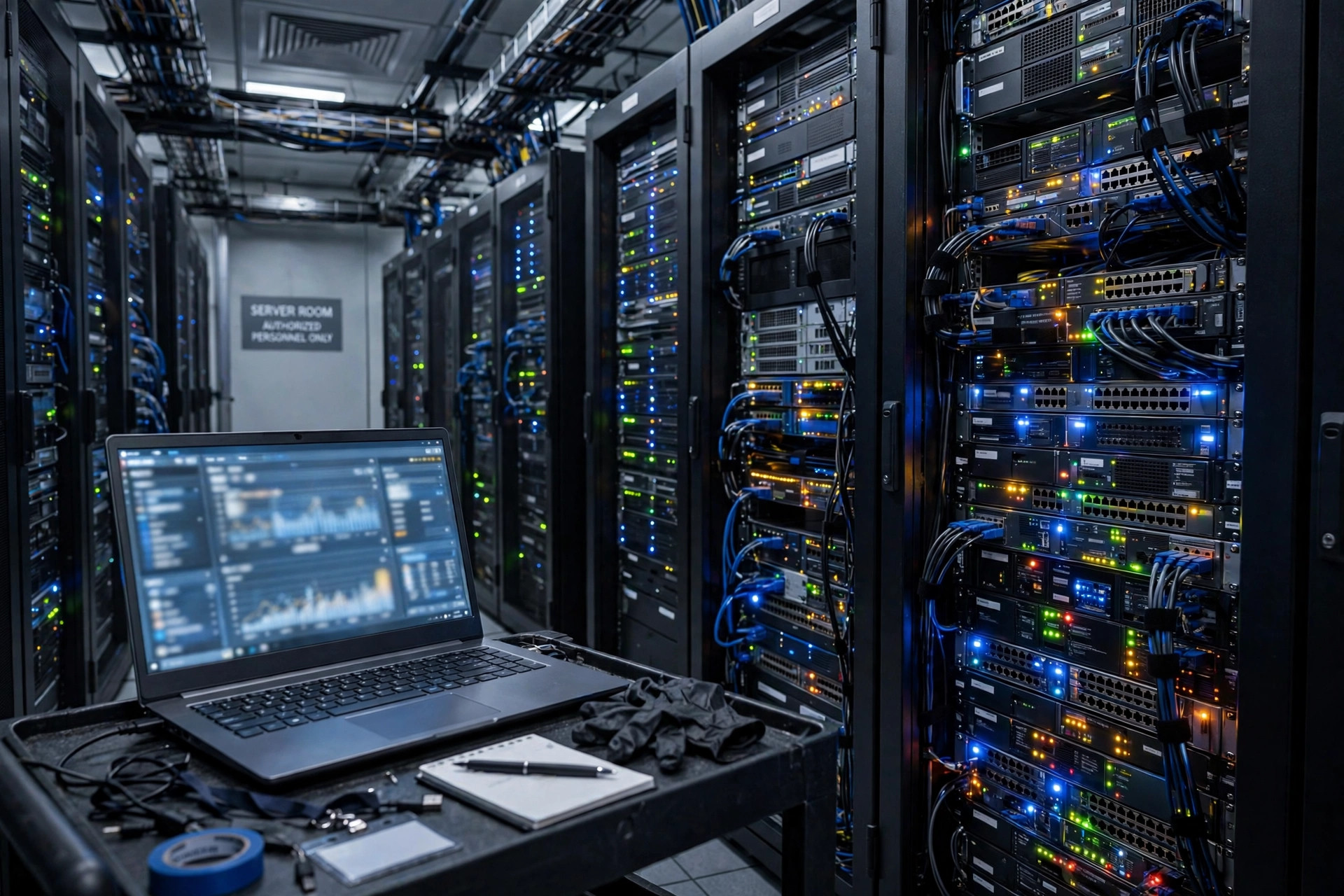
A platform event trap (PET) is a hardware alert: a small message your server or switch sends, through its Baseboard Management Controller, when a sensor detects a problem — a failing fan, rising temperature, a dead power supply, or a memory error. It works even when the operating system has crashed, which is exactly why it exists. Confusingly, the same phrase is also used informally in software circles for a design mistake with event-driven systems like Salesforce Platform Events. This guide covers both meanings, shows you how to set PET up on Cisco hardware, decode a trap, and fix the problem behind it.
| Question | Short answer |
|---|---|
| What is a platform event trap? | An IPMI hardware alert sent as an SNMP trap by a server’s BMC when a sensor reports an event |
| Why does it matter? | It works without the OS, so it can warn you when normal logs cannot |
| What creates it? | The BMC (Baseboard Management Controller), acting on rules in the Platform Event Filter (PEF) table |
| Where do you see it? | Cisco CIMC, other vendors’ BMCs, and your central monitoring system |
| Is it always serious? | No — check severity and whether it repeats; a one-off during maintenance may be harmless |
| Second meaning? | An informal name for overusing event-driven architecture (e.g., Salesforce Platform Events) — not an official term |
| First action | Read the sensor and severity, check the device physically, check the system event log |
Table of Contents
- What Is a Platform Event Trap?
- Two Meanings: Hardware Alert vs Software Anti-Pattern
- How a Platform Event Trap Works, Step by Step
- What Is Inside a Trap? OID, Severity, and Sensor Data
- Common Causes: What Triggers a PET Alert
- Setting Up PET on Cisco Devices (CIMC)
- How to Read and Decode a Trap
- How to Fix the Problem Behind a Trap
- When Can You Ignore a Trap?
- Tuning Filters to Beat Alert Fatigue
- SNMP Security: Traps vs Informs, v2c vs v3
- The Software Meaning: The Event-Driven “Trap”
- A PET Runbook You Can Copy
- Frequently Asked Questions
- Conclusion
What Is a Platform Event Trap?
A platform event trap, usually shortened to PET, is a hardware alert defined by the IPMI standard — the Intelligent Platform Management Interface, a set of specifications for monitoring and managing server hardware independently of the operating system. A small chip on the device, the Baseboard Management Controller (BMC), watches hardware sensors and sends the alert as an SNMP trap (Simple Network Management Protocol) to a monitoring system you designate.
The defining feature is independence. Normal logs like syslog depend on the operating system and the main processor: if the system crashes, those logs may never be written. A platform event trap can still be sent, because the BMC keeps running on standby power in the background. That is why PET exists: it is the smoke alarm that works when the house’s electrics are out.
Two Meanings: Hardware Alert vs Software Anti-Pattern
Searching this phrase returns two different ideas, and mixing them up causes real confusion:
- The hardware meaning (official). The IPMI PET described above — a real, standardized feature found on Cisco servers and switches and on most other server brands.
- The software meaning (informal). Some tech writers use “platform event trap” for a design mistake: teams that treat event systems (like Salesforce Platform Events) as the answer to every problem, even when a simpler synchronous call, a queue, or a batch job would do. This is not an official Salesforce term — it is a writer’s label for a pattern of mistakes.
This article gives the hardware meaning most of the space, because it is what most people are searching for when the phrase appears in a log. The software meaning gets its own section near the end.
How a Platform Event Trap Works, Step by Step
- Something happens. A fan slows down, temperature rises, a power supply fails, a memory module reports an error, or a part is added or removed.
- A sensor notices. Hardware sensors watch temperature, fans, voltage, and memory. When a sensor crosses a threshold or changes state, it sends an event message to the BMC.
- The BMC checks its filter table. The BMC holds a list of rules called the Platform Event Filter (PEF) table. Each incoming event is compared against these rules.
- The BMC takes an action. If the event matches a rule, the BMC does what the rule says: take no action, reboot the server, power-cycle it, power it off, send an alert, or a combination.
- The trap is sent. The alert travels as an SNMP trap to the destination you configured — your monitoring platform.
- Your team sees it. The monitoring system receives, decodes, and displays the alert so someone can act.
The trap format follows the public Platform Event Trap Format specification, which is why tools from many vendors can read traps from many different hardware brands.
What Is Inside a Trap? OID, Severity, and Sensor Data
A trap is not a plain sentence; it carries structured data. The key fields:
- Enterprise OID (Object Identifier). A unique number identifying the event type. For Cisco CIMC alerts, the OID takes the form
1.3.6.1.4.1.3183.1.1.0.<event>— decoded as iso(1).org(3).dod(6).internet(1).private(4).enterprises(1).wired_for_management(3183).PET(1).version(1).version(0), marking an IPMI PET version 1.0 message, with the final field giving the specific event number. Cisco’s documentation includes a table mapping event numbers to descriptions. - Event source type. What kind of device or software generated the event.
- Severity. How serious the event is — informational, warning, or critical. Always read this first.
- Sensor details. Which sensor (and sensor number) reported, so you know which fan, power supply, or memory module is involved.
- Event state. Whether the condition is asserted (happening now) or deasserted (cleared).
Much of this arrives as hexadecimal codes. They look strange at first, but decoding tools exist — see the FreeIPMI section below.
For another deep technology explainer, see our guide to the latest breakthroughs in quantum computing.
Common Causes: What Triggers a PET Alert
| Trigger | Typical underlying cause | Urgency |
|---|---|---|
| Temperature critical | Blocked airflow, dust, failed fan, hot room | High — heat damages hardware fast |
| Fan slow / stopped / removed | Failed fan, disconnected cable, hot-swap removal | High if it affects cooling; low if planned |
| Power supply failure or input loss | Dead PSU, unplugged cable, UPS/power issue | High — redundancy may already be gone |
| Memory errors | Failing DIMM, seating problem, correctable errors accumulating | Medium to high — replace before it becomes uncorrectable |
| Voltage out of range | Failing PSU or voltage regulator | High |
| Hardware added or removed | Hot-swap maintenance, or an unexpected removal | Low if planned; investigate if not |
Treat every alert as real until you prove otherwise. A single warning can be a blip; the same warning repeating is almost always a genuine fault developing.
Setting Up PET on Cisco Devices (CIMC)
On Cisco UCS servers, you configure platform event alerts in the Cisco Integrated Management Controller (CIMC), via the command line or the web interface. Menu names vary between models and software versions, so always check the guide for your exact device. The general flow:
Step 1 — Enable platform event alerts for the device. In the CIMC CLI:
Server /fault # set platform-event-enabled yesUse no instead of yes to disable. CIMC typically asks you to save with the commit command.
Step 2 — Set your Platform Event Filters. Enter the fault scope and configure a filter per event, choosing the action when it fires:
Server# scope fault
Server /fault # scope pef 1
Server /fault/pef # set action reboot
Server /fault/pef # set send-alert yes
Server /fault/pef *# commit
Server /fault/pef # show
The action options are none (no system action), reboot, power-cycle, and power-off. The example above configures filter 1 (a temperature critical assert filter in Cisco’s documentation) to reboot the server and send an alert. In the CIMC web interface, the same settings live under Admin > Event Management > Platform Event Filters, with an “Enable Platform Event Alerts” checkbox and per-filter action and “Send Alert” columns.
Step 3 — Configure the SNMP trap destination. Tell the device where to send traps: your monitoring system’s address. Use one central platform for all traps so alerts do not scatter across tools.
Step 4 — Test it. Send a test trap or trigger a safe test event, and confirm your monitoring system receives and decodes it. An untested alert setup gives false confidence — the worst kind.
How to Read and Decode a Trap
When your monitoring system receives a trap, you will often see raw hex bytes first. The free FreeIPMI suite includes ipmi-pet, a tool that parses and interprets platform event traps into readable text, showing severity, event state, and sensor details. It works best together with the device’s Sensor Data Repository (SDR) data, which maps sensor numbers to names; without SDR data it can only tell part of the story. FreeIPMI also provides ipmi-pef-config for configuring Platform Event Filtering, ipmi-sel for reading the System Event Log, and ipmi-sensors for live sensor readings.
A typical workflow: the trap daemon (such as snmptrapd) receives the trap, ipmi-pet decodes it, and your monitoring platform correlates it with the device’s SEL entries from the same time window. If your monitoring platform already decodes PET natively, check that first — many do, and it saves a pipeline step. ipmi-pet can also send a PET acknowledge message back to the device, confirming receipt.
How to Fix the Problem Behind a Trap
Remember: the trap is the messenger. You fix the hardware or the setting behind it, not the trap itself.
- Read the message. Identify the sensor, the part, and the severity.
- Check the severity. Critical heat or power alerts need fast action; an informational message may only need a note.
- Look at the device. Check fans, power supplies, airflow, dust, and room temperature.
- Check the logs. Read the device’s System Event Log for events around the same time — a trap rarely arrives alone.
- Replace or repair the part. A fan, PSU, or memory module that keeps failing needs replacement; contact the vendor if the device is under support.
- Watch for repeats. One alert can be a blip. The same alert again and again points to a real fault — escalate it.
When Can You Ignore a Trap?
Sometimes, legitimately: traps caused by planned work (a technician removing a part on purpose) are expected, and some low-value traps fire so often they carry no information. But never silence alerts merely because they are annoying. The correct response to noise is tuning (next section), not muting — a muted channel will also swallow the critical alert that arrives at 3 a.m. during an actual failure.
Tuning Filters to Beat Alert Fatigue
Alert fatigue — hundreds of low-value alerts teaching a team to ignore all alerts — is the most common reason PET setups fail in practice. Better than turning everything off:
- Keep alerts for serious events: failures, critical temperatures, power loss, uncorrectable memory errors.
- Suppress or aggregate informational events and known-harmless state changes.
- Match filters to your escalation rules, so each alert goes to the right person at the right urgency.
- Review filters every few months, and after every hardware change or maintenance window.
- During planned maintenance, pause alerts for the affected devices only, for a defined window — then re-enable them automatically.
SNMP Security: Traps vs Informs, v2c vs v3
Two practical security points that basic guides often skip. First, classic SNMP traps are unacknowledged — the sender fires and forgets — while SNMP informs require an acknowledgment from the receiver, at the cost of extra traffic. For critical hardware alerts, informs (or a trap pipeline with PET acknowledge, as FreeIPMI supports) give you delivery confidence that plain traps do not.
Second, SNMPv2c community strings are sent in clear text and are effectively passwords that anyone on the path can read. If your traps cross any untrusted network, use SNMPv3 with authentication and encryption, restrict trap destinations to your monitoring hosts, and rotate community strings like credentials. A monitoring channel with weak security is itself an attack surface: forged traps can trigger unnecessary reboots if your PEF actions include them, which is another reason to scope reboot/power actions carefully.
The Software Meaning: The Event-Driven “Trap”
Now the second meaning. Modern systems use events: one part publishes a small message saying something happened, and other parts subscribe to it. Salesforce Platform Events, for example, let applications inside and outside Salesforce share real-time data through an event bus. It is a powerful pattern — and writers warn that teams fall into a “trap” when they treat events as the answer to every problem, even when a simple API call, a queue, or a scheduled job would do.
Warning signs: slow performance and strange behavior that is hard to explain; a huge number of events for small tasks; delays in the event bus; bugs that only appear in production, because events are asynchronous (the sender does not wait for the receiver).
Why limits matter: Salesforce governs platform events with allocations covering event definitions, publishing, subscribing, and delivery. Some limits are rolling (counted over a moving window, not reset at a fixed time), and the delivery allocation is shared between high-volume platform events and Change Data Capture events — so one feature can consume what another needs. Exact numbers depend on your Salesforce edition and licenses, so always check the current official guide; exceeding limits can cause publishing failures and slowdowns.
How to avoid the trap: define clear use cases and ask whether an event is really the best tool; keep events small and consistently formatted; monitor publishing and delivery usage continuously, not only when something breaks; plan for subscriber failures, late events, and duplicates (events are typically at-least-once, so subscribers must be idempotent); and test subscribers with the platform’s own testing tools, including Apex tests for Salesforce.
A PET Runbook You Can Copy
| Step | Action | Done when |
|---|---|---|
| 1. Triage | Read severity, sensor, and event state from the decoded trap | You know what part and how urgent |
| 2. Correlate | Check SEL entries and monitoring graphs for the same window | You know if it is isolated or part of a pattern |
| 3. Inspect | Physical check: fans, PSUs, airflow, room temperature | Obvious causes ruled in or out |
| 4. Decide | Critical → act now; warning + repeat → schedule replacement; informational + planned work → log and close | Decision recorded on the ticket |
| 5. Fix | Replace the part or correct the setting; confirm the alert clears | No repeat trap for 24 hours |
| 6. Tune | If the trap was noise, adjust the filter — not the whole channel | Filter change reviewed by a second person |
For discussion around this topic, see the Cisco Community thread on CIMC-E SNMP and hardware monitoring.
Frequently Asked Questions
What does platform event trap mean on a Cisco switch or server?
It means the device’s BMC sent a hardware alert following the IPMI standard, delivered as an SNMP trap to your monitoring system. It reports that a sensor saw a change or problem — a fan fault, high temperature, power supply issue, or memory error — and it can reach you even when the main system is down.
Is a platform event trap a serious error?
It can be. Treat it as important until you check the severity and sensor details. A critical alert about heat or power needs quick action; a low-level message about a planned change may be harmless. If the same alert keeps returning, it is likely a real hardware issue.
Can I turn off platform event trap alerts?
Yes — in CIMC you can disable platform event alerts for the device — but tuning your filters is usually better than disabling everything. Keep alerts for failures and critical conditions, and suppress only the harmless, high-volume ones.
How do I decode a platform event trap?
Use FreeIPMI’s ipmi-pet tool, which parses the trap’s hex data into readable text with severity and sensor details, ideally together with the device’s Sensor Data Repository data. Many monitoring platforms also decode PET traps natively.
What is the difference between a trap and an inform?
A trap is sent without acknowledgment; an inform requires the receiver to acknowledge receipt. For critical hardware alerts, informs (or PET acknowledge) give delivery confidence that plain traps lack.
Is the Salesforce “platform event trap” an official term?
No. It is an informal label writers use for overusing event-driven architecture — too many events, unclear ordering, limit exhaustion, and hard-to-debug async behavior. Salesforce’s official documentation covers platform event allocations and limits, which is the concrete guidance to follow.
Conclusion
A platform event trap is not something to fear — it is a smoke alarm for your hardware, and one that works when the operating system cannot. Set your filters with care, point traps at one central system, test the setup, learn to decode the data, and tune rather than mute when noise appears. And if you work with event-driven software, remember the second meaning too: use events where they help, watch your limits, design for failure and duplicates, and keep the architecture simple. With both meanings understood, you will be ready the next time a platform event trap shows up in your logs.